
November 4, 2025

How to generate animated titles (without being an animator) in Descript

Generate animated titles in Descript without learning animation software. No keyframes, no tutorials, no throwing your laptop out a window.
November 4, 2025

How to generate animated titles (without being an animator) in Descript

Generate animated titles in Descript without learning animation software. No keyframes, no tutorials, no throwing your laptop out a window.
November 4, 2025
Ashley Hamer Pritchard
In this article
Start editing audio & video
This makes the editing process so much faster. I wish I knew about Descript a year ago.
Matt D., Copywriter
Sign up

What type of content do you primarily create?

Videos
Podcasts
Social media clips
Transcriptions
Start editing audio & video
This makes the editing process so much faster. I wish I knew about Descript a year ago.
Matt D., Copywriter
Sign up

What type of content do you primarily create?

Videos
Podcasts
Social media clips
Transcriptions

Look, not every video needs a fancy animated title sequence. But sometimes you want one—maybe to make your video feel more polished, or because you saw someone else's cool intro and thought "I want that energy."

The problem is that actually animating text usually means opening After Effects, watching a 40-minute tutorial about keyframes, and then spending two hours tweaking easing curves until you want to throw your laptop out a window.

Or you could just generate it in Descript and move on with your day.

How to generate animated titles in Descript

1. Build your look first (or don't)

Start by setting up what you want your title to look like. Pick your background, add your text, choose fonts, colors—the whole visual vibe.

Now here's the thing: you can actually skip this step entirely and just go straight to generating. But if you build it out manually first, you get way more control over the final look. You can make sure it actually matches your video instead of getting something that looks like it belongs to someone else's channel.
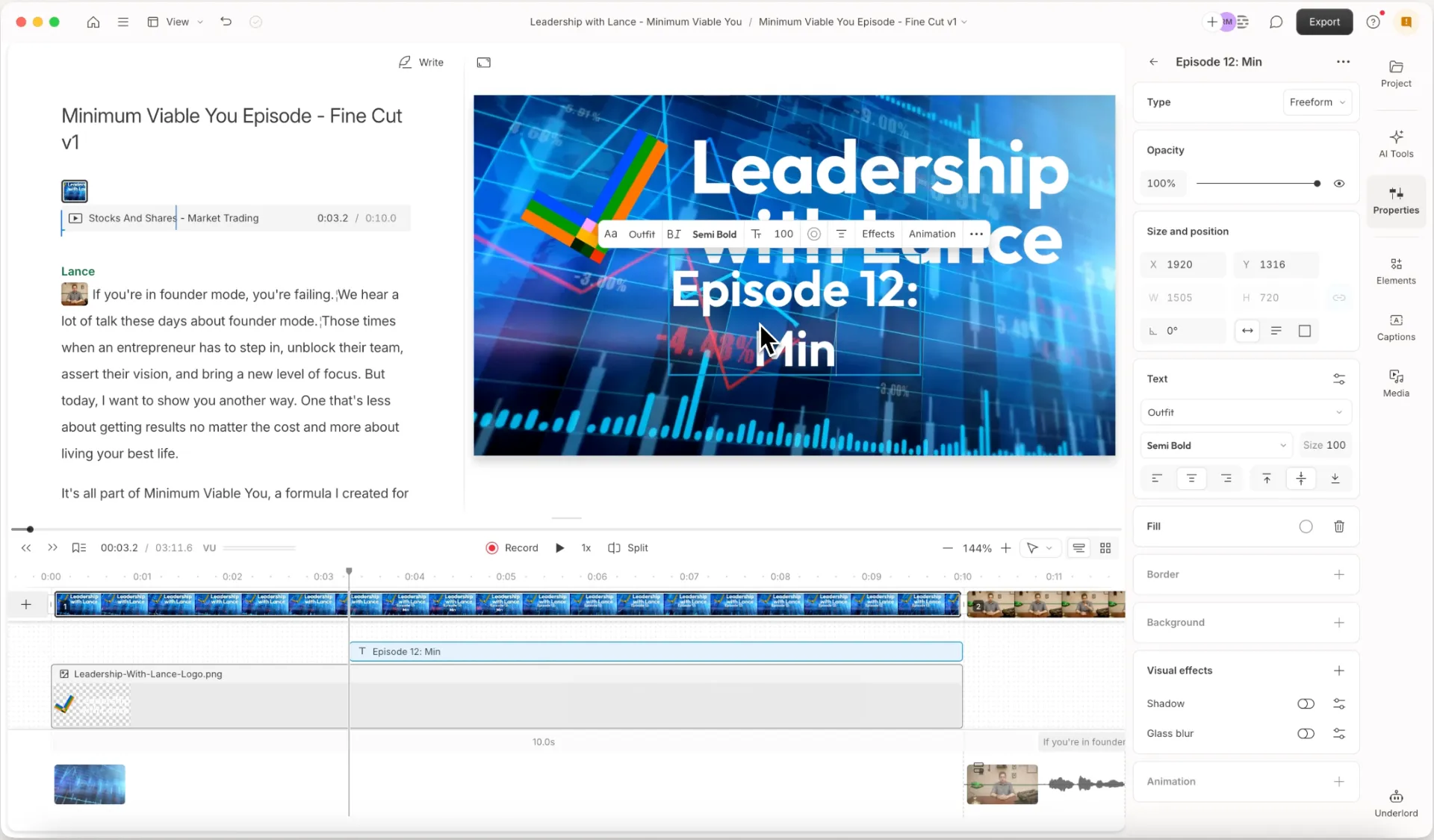

Creating the look of the title card in Descript

‎2. Save and generate

Once you have your basic setup, save that frame to your project files.

Saving the frame to project files

‎Then head to AI tools and click "Generate a video." Pick which model you want to use, write a prompt describing how you want the text and background to animate, then attach that saved frame as the reference image.

Using saved frame as reference image

Tip: detailed prompts get you better results. "Animate the text" will give you something. "Make the text slide in from the left while the background pulses gently" will give you something closer to what's actually in your head.

3. Get your animation

Hit generate and wait a few seconds. That's it. You now have an animated title without touching a single keyframe or learning what a Bezier curve is (and honestly, you're better off not knowing).


Completed animation

When this is actually useful

This is perfect if you fall into one of these categories:

  • You have zero time
  • You have zero budget for motion graphics
  • You have zero tolerance for traditional animation software
  • You're fine with "good enough" instead of "I spent six hours on this title card"

It won't give you the same level of control as doing it manually in a dedicated animation tool. But it will give you something that looks intentional and polished—which is usually all you really need.

Other stuff Descript does

Since you're here: Descript also edits video and audio by letting you edit the transcript, so you see your whole narrative in front of you. It also has incredibly useful AI tools that let you remove filler words, generate AI voices, fix your audio, add captions, and collaborate with your team. It's designed for people who want to make stuff that sounds and looks good without spending all their time learning complicated software.

Ashley Hamer Pritchard
Managing Editor at Descript. Musician, podcaster, writer, science nerd.
Share this article

Related articles

No items found.
Start creating—for free
Sign up
Join millions of others creating with Descript

How to generate animated titles (without being an animator) in Descript

Look, not every video needs a fancy animated title sequence. But sometimes you want one—maybe to make your video feel more polished, or because you saw someone else's cool intro and thought "I want that energy."

The problem is that actually animating text usually means opening After Effects, watching a 40-minute tutorial about keyframes, and then spending two hours tweaking easing curves until you want to throw your laptop out a window.

Or you could just generate it in Descript and move on with your day.

How to generate animated titles in Descript

1. Build your look first (or don't)

Start by setting up what you want your title to look like. Pick your background, add your text, choose fonts, colors—the whole visual vibe.

Now here's the thing: you can actually skip this step entirely and just go straight to generating. But if you build it out manually first, you get way more control over the final look. You can make sure it actually matches your video instead of getting something that looks like it belongs to someone else's channel.


Creating the look of the title card in Descript

‎2. Save and generate

Once you have your basic setup, save that frame to your project files.

Saving the frame to project files

‎Then head to AI tools and click "Generate a video." Pick which model you want to use, write a prompt describing how you want the text and background to animate, then attach that saved frame as the reference image.

Using saved frame as reference image

Tip: detailed prompts get you better results. "Animate the text" will give you something. "Make the text slide in from the left while the background pulses gently" will give you something closer to what's actually in your head.

3. Get your animation

Hit generate and wait a few seconds. That's it. You now have an animated title without touching a single keyframe or learning what a Bezier curve is (and honestly, you're better off not knowing).


Completed animation

When this is actually useful

This is perfect if you fall into one of these categories:

  • You have zero time
  • You have zero budget for motion graphics
  • You have zero tolerance for traditional animation software
  • You're fine with "good enough" instead of "I spent six hours on this title card"

It won't give you the same level of control as doing it manually in a dedicated animation tool. But it will give you something that looks intentional and polished—which is usually all you really need.

Other stuff Descript does

Since you're here: Descript also edits video and audio by letting you edit the transcript, so you see your whole narrative in front of you. It also has incredibly useful AI tools that let you remove filler words, generate AI voices, fix your audio, add captions, and collaborate with your team. It's designed for people who want to make stuff that sounds and looks good without spending all their time learning complicated software.

Featured articles:

No items found.

Articles you might find interesting

No items found.

Related articles:

Share this article

Get started for free →